Using Atmostropic
A quick tour of the controls, results and information behind the calculators.
Atmostropic is for education, personal learning and entertainment. Read the EULA for the permitted-use terms; reports do not make it a certified engineering tool.
1. Start with a calculator
On first use, read the EULA, scroll to its end and choose Accept. The calculators unlock after acceptance is saved in this browser. General information, Support and Privacy remain accessible before acceptance.
Choose a model
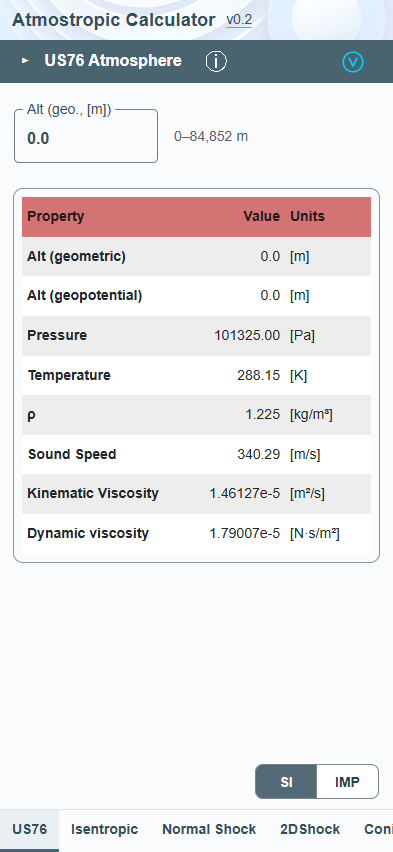
Tap the tabs along the bottom: US76, Isentropic, Normal Shock, 2DShock, ConicShock, Fanno or Rayleigh. Scroll the tab strip sideways to reveal more tools. You can also swipe across the calculator body to change tools; swipes over controls and scrollable results keep their normal behavior.
Enter values
Results refresh as valid inputs change; there is no Calculate button. US76 uses geometric altitude. Flow tools also use Mach and Gamma (specific-heat ratio). Follow the displayed range and any input error message. If an entry is invalid, correct it before interpreting the results; a previous result may remain visible.
Read and scroll
Scroll the results vertically to see all rows. SI and IMP change displayed units; read the Units column for each property. Input values are held in memory and reset on a full reload.
For Fanno and Rayleigh, choose TO SONIC for a sonic reference or 2 STATIONS and enter Mach(2) for a second station.
2. Know the buttons
- v#.# — General information
 The version control beside “Atmostropic Calculator” opens General information. Its tabs provide version history, offline status, Support, EULA and Privacy. The displayed number identifies the running app version.
- Update badge
 An Update badge beside the version means a release is available. It is part of the version control: tap it to open General, then choose Update Atmostropic to download and activate the release. The badge itself does not start the download.
- Reply badge
 A Reply badge indicates an unread support reply. Open the General information dialog (tap version number), then tap the Support tab to read it.
- ⓘ — About this model
 The ⓘ opens a short, bundled explanation of the selected model. It works offline once cached. The separate original-source link clearly identifies an external website and connects to that site only when you choose it.
- — Verification and validation
 The icon at the right of the model bar opens a model performance report if available. It identifies the scope of the tests run and a set of potential limitations. Verification reports compare the performance of the Atmostropic models against an independent implementation of the same or a similar model (as well as the performance of any ported languages that we support). Validation reports compare the performance of the theoretical model against real-world data when available. Availability of these reports is not an indication of suitability of the model for any purposes beyond education and entertainment.
3. Explore shock angles
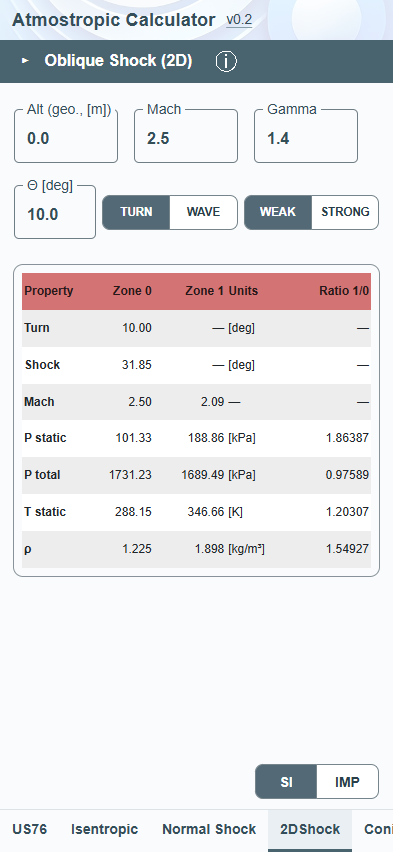
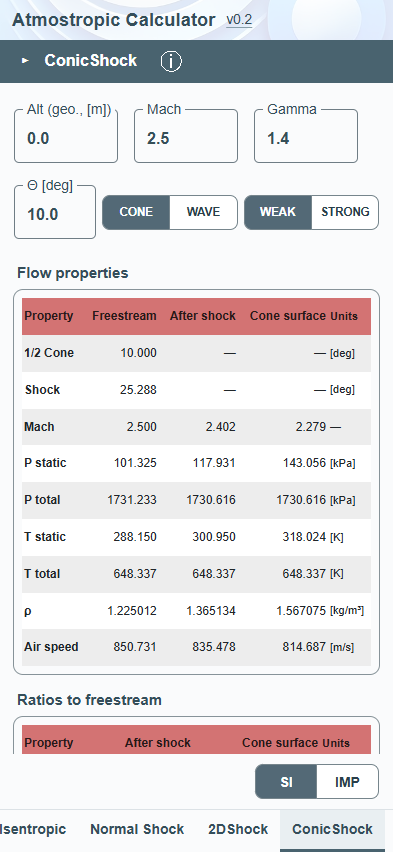
Θ [deg] (capital theta) is the turning angle in 2DShock, or cone half-angle in ConicShock. Β [deg] (capital beta) is the shock wave angle when WAVE is selected. Both inputs are in degrees. The full angle name is also provided to screen readers.
Select TURN (or CONE in ConicShock) to specify the deflection/cone geometry, or WAVE to specify the shock angle. WEAK and STRONG select the solution branch where applicable. For wave input, the supplied wave angle determines the solution. A detached-shock or invalid-input message means the requested attached solution cannot be shown.
4. Read the supporting information

General and Support
General shows the version history and offline status. Support provides text chat without an account or email address. Messages are sent when you choose Send message. Replies are checked at online startup if this browser has a case secret, or when you select Check for replies. Opening Support does not make an additional check. When enabled, the owner receives an email notice with only the public case ID after a message is saved; message text and the access secret stay out of email. Notices have separate mail-provider retention, and replies remain in the app.
Avoid personal or sensitive information. Clearing browser site data loses the local case secret and access cannot be recovered. See the Support and Privacy tabs for expiry, deletion and hosting-backup limitations.
Report tabs and colors
Verification examines agreement with reference implementations or published model data; Validation examines evidence against an independent comparison such as observations. Read the actual report: an assessment of a source is not completed numerical validation.
The default icon color indicates verification evidence; cyan indicates observed-data validation, and green denotes higher-order-method validation when available. The control’s accessible label also describes the evidence. Currently US76 links observed-data comparisons; Isentropic links verification and a validation source assessment with numerical validation pending.
Use Close to return to the calculator. Keyboard users can tab between controls, use arrow keys within the information tabs, and press Escape to close dialogs after EULA acceptance.
5. Offline access and updates
Open the app online and check General for Available offline before disconnecting. Use Retry if offered after a caching failure. Browser storage can be cleared or evicted, so recheck offline availability when needed. The app can also be installed using your browser’s installation or Add to Home Screen option; availability and wording depend on the browser.
The app checks for updates automatically, but downloads the new release files only after you select Update Atmostropic. Updating reloads the app and resets inputs. If terms change, acceptance is required again. A failed update keeps the prior cached release and requires an explicit retry.
Calculations run on your device. Initial app files, missing-resource recovery, update checks/downloads and deliberate external links use the network; support also has the startup reply check described above. See the privacy statement for details. Removing a home-screen shortcut alone does not necessarily clear browser site data.